Architect Mode fundamentals
Architect Mode is where you draw. Pick a preset, click out a path in the viewport, and the actor generates along it as you go; the same mode edits existing paths point by point.
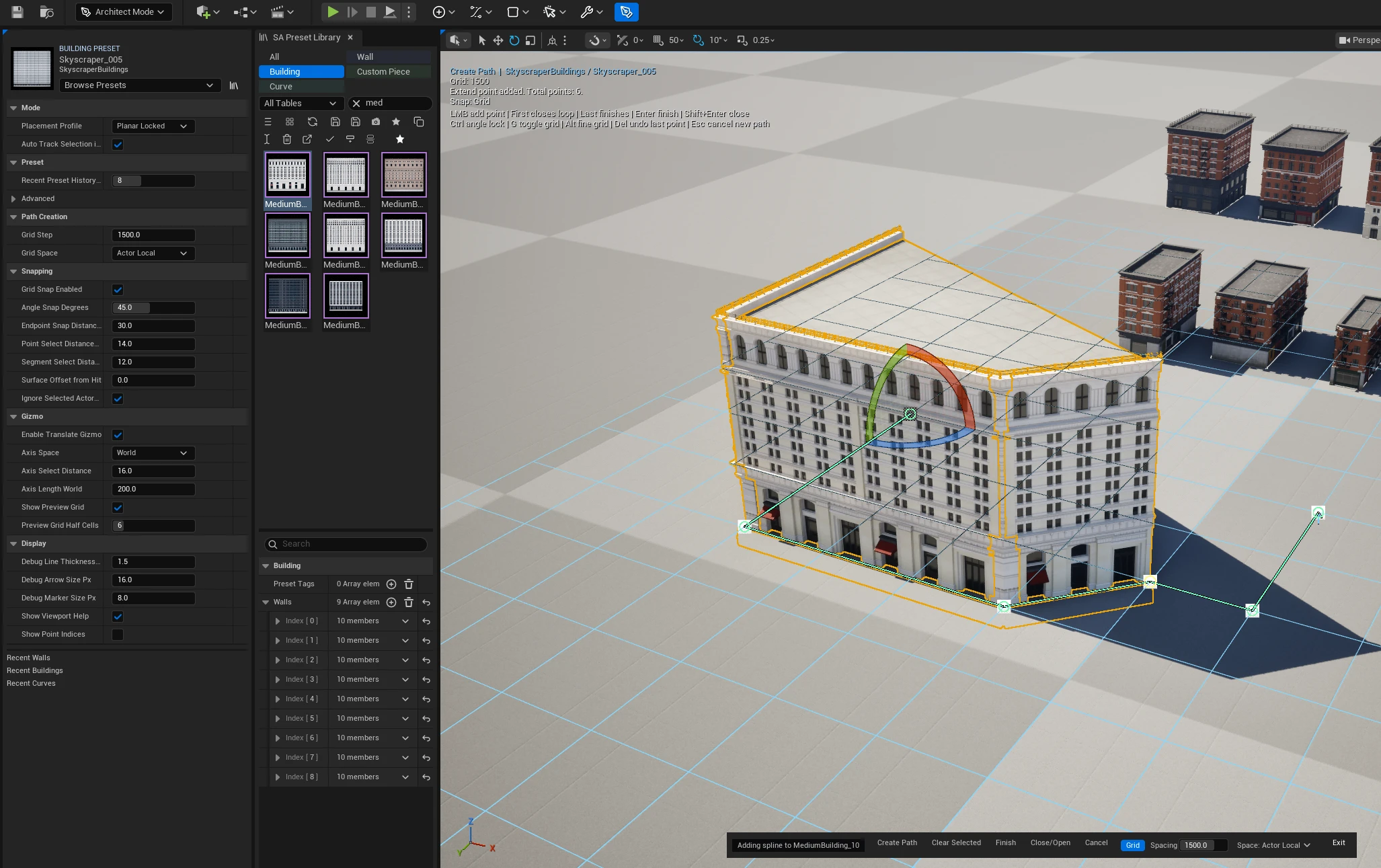
Draw a path
- Enter Architect Mode from the Modes panel or the Spline Architect menu.
- Browse Presets and pick a Wall, Building, or Curve preset. The plugin includes starter presets; try Wall from SA_Walls for your first path. If the library appears empty, check the preset filters and installation.
- Click in the viewport to add points.
- Click the first point to close the loop - the right move for a building footprint - or click the last point or press Enter to finish an open run like a fence.
While drawing:
| Input | Result |
|---|---|
| Left click | Add a point. |
| First point | Close the loop. |
| Last point or Enter | Finish the open path. |
| Shift+Enter | Close and finish. |
| Ctrl | Lock the next segment to Angle Snap Degrees. |
| G | Toggle the Architect Mode grid. |
| Alt | Use one tenth of the current grid step. |
| Delete | Remove the last point. |
| Esc | Cancel the new path. |
Edit an existing path
Select a Spline Architect actor and enter Architect Mode. Click points or segments, Shift-drag a marquee, or press Ctrl+A for everything. Points drag directly; the gizmo adds axis and plane handles when you want a constrained move.
| Input | Result |
|---|---|
| Ctrl+click a segment | Insert a point. |
| Shift+drag | Box-select points and segments. |
| Ctrl+I | Invert the current point/segment selection. |
| Delete | Remove selected points or segments. |
| L | Toggle loop state. |
| Click an endpoint | Begin extending the path. |
| Shift+drag a handle | Extrude selected geometry. |
| Right-click | Open context actions, including branching. |
| Alt+click an actor | Pick a different Spline Architect actor under the cursor. |
Placement Profile decides where clicks land: Planar Locked keeps a footprint flat, which is what architecture usually wants; Surface Projected follows terrain, which is what paths and fences usually want. Everything else - branching, snapping, shapes, the grid - is in the Architect Mode reference.