Build a reusable Building
A Building is a Wall stack you taught the plugin to rebuild anywhere. This page builds one the long way once - draw the stack, save it, place it - so you know exactly what the preset contains.
0. Start with a Wall preset
The plugin includes starter meshes and presets. For this tutorial, use the Wall preset from the included SA_Walls table. It supplies the meshes and fitting settings so you can learn to draw and stack walls before preparing your own kit.
To try a complete building first, choose the included Building preset from SA_Buildings and draw a closed footprint. Continue below to learn how to author a building from individual Walls. If the library appears empty, check the preset filters and installation.
For more designs to study, the separate SACity example project on Fab contains a built city with additional presets and meshes. It requires UE 5.8 and the matching plugin; the starter kit in the plugin works on UE 5.5–5.8.
When you are ready to use your own kit, prepare modular meshes explains what makes a mesh fit well. Save Preset puts your setup in the library for reuse.
1. Draw the root Wall
Enter Architect Mode, choose the starter Wall preset or a ground-floor preset from your own kit, and draw a closed footprint. The root Wall owns the spline; every layer you stack on it follows that same footprint.
For a first run that behaves the same every time: set Seed to something fixed like 42, and get the footprint right before stacking - a footprint edit regenerates every layer above it.
2. Stack the layers
Select the root Wall and choose Spline Architect → Add Wall to Selected, then pick an upper-floor or roof-line preset. The new Wall connects to its parent, follows the same footprint, and stacks by its own height.
With the starter kit, reuse the Wall preset for another storey. You can choose a different design once you have learned how the layers connect.
Repeat per layer, giving each one job: ground floor, repeated upper floor, parapet, trim, roof edge. Select Connected and Select Roots navigate the stack when it grows.
To slide a new storey in underneath an existing stack, select the bottom wall and choose Insert Wall. The new wall takes over the footprint and everything above it moves up, custom pieces included.
3. Save it as a Building Preset
Select the root Wall. In its Preset category, click Save Building Preset, and choose or create a Building Preset DataTable and a row name.
The row records the whole hierarchy: each layer's identity and parent, whether it uses a Wall DataTable row or carries its settings inline, its parameter overrides, and any random floor ranges. That is the entire building, as data - which is why the next step works.
If you only want this stack collapsed into a single actor and will never reuse the design, press Convert to Building instead. It carries the settings inline, with no DataTable row and no save prompt.
4. Place it on any footprint
In Architect Mode, switch to Building presets, select your saved row, and draw a different closed footprint - wider, L-shaped, whatever the block needs. The Building resolves the same layer stack onto it.
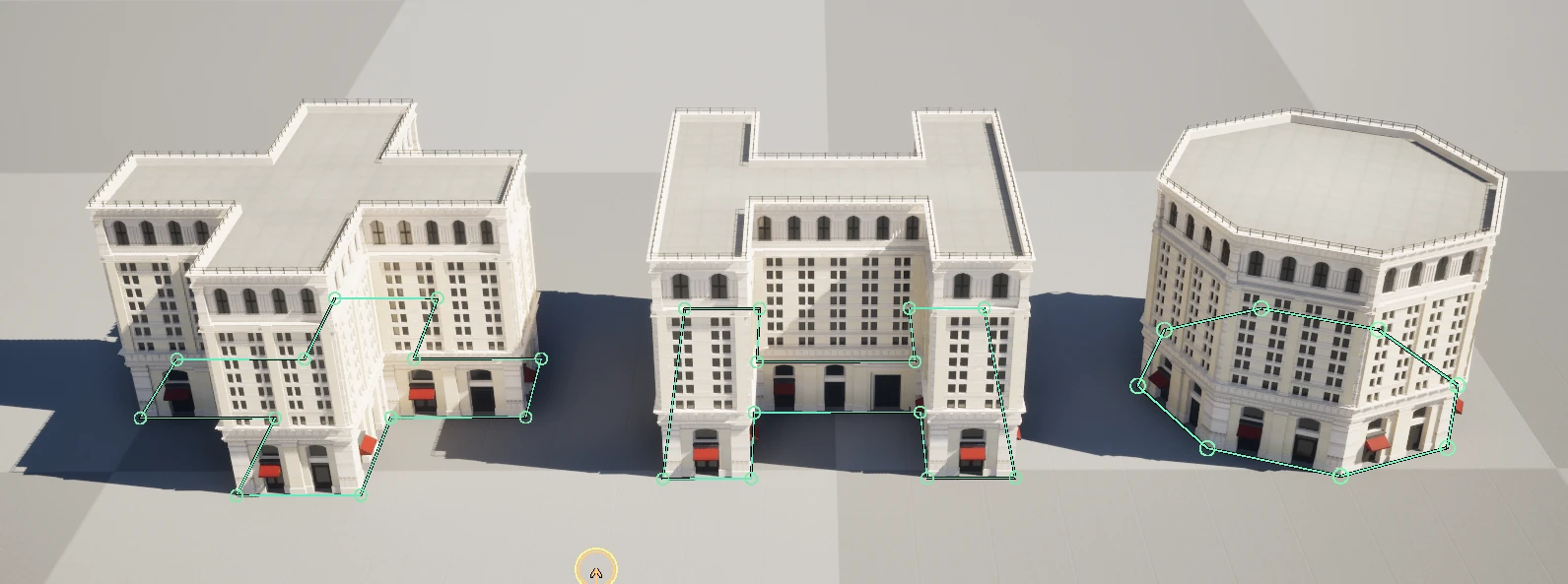
This is the point of a Building over a copied wall stack: one preset, any footprint. Corners, floors, and roofs resolve to whatever shape you drew, and an edit to the preset row updates every placement when it regenerates.
5. Bake the connected result
Run Bake Connected from the Spline Architect menu - it bakes the root and every connected layer together. If you edit anything later, the affected output unbakes itself and shows the new preview; look it over and Rebake Connected. That loop is the baked-first workflow.
A placed Building is hard to art-direct as one actor - it is many walls. Break turns it back into editable connected Walls; adjust them individually, then press Convert to Building to collapse the result into a Building again, carrying your changes as its own inline preset. The original preset row is untouched, so every other placement keeps following it.