Architect Mode and Streets Mode
Architect Mode
Architect Mode creates and edits Wall, Building, and Curve paths directly in the level viewport. Browse Presets is the primary picker: Recent and All tabs, search, DataTable filtering, type filters, and optional thumbnails are available without leaving the mode.
Creation controls
| Input | Action |
|---|---|
| Left click | Add a point. Clicking the first closes the loop; clicking the last finishes an open path. |
| Enter / Shift+Enter | Finish open / close and finish. |
| Ctrl | Lock direction to the configured angle increment. |
| G / Alt | Toggle grid / temporarily use a one-tenth fine grid. |
| C | Re-anchor the grid to the current frame without ending the path. |
| Delete | Undo the last new point. |
| Escape | Cancel the current path. |
| N | Start a new path while the mode remains active. |
Selection and editing
| Input | Action |
|---|---|
| Left click point or segment | Select; points can be dragged directly. |
| Ctrl+left click segment | Insert a point at the ray-correct world location. |
| Shift-drag | Marquee-select. |
| Ctrl+A / Ctrl+I | Select all / invert selection. |
| Delete | Remove selected points or segments. Deleting a complete component removes that spline component. |
| L | Toggle loop state. |
| Axis, plane, or center gizmo drag | Move selected points with the chosen axis space and snapping. |
| Shift+handle drag | Extrude from the current selection. |
| Click endpoint | Extend the path; endpoint snapping can connect to another path. |
| Right-click | Context menu for branch, split, shape, and regeneration operations. |
| Alt+left click actor | Pick a different Spline Architect actor for editing. |
| Escape | Cancel the current interaction, clear selection, or exit in successive presses. |
The branch operation can create another spline within the actor or a connected actor stack, depending on context. Segment deletion and splitting preserve valid spline components and invalidate stale point/segment selections automatically.
The grid
Three controls in the viewport bar drive the drawing grid.

| Control | What it does |
|---|---|
| Grid | Snap points to the grid while drawing and dragging. Shows its state, and is the same toggle as the G key. |
| Spacing | Distance between grid lines. It edits the selected actor's Grid Size; with nothing selected it sets the spacing new actors start with. A dash means the selected actors disagree, and nothing is written until you enter a value. |
| Space | Which way the grid is turned. World keeps every path on one shared city-wide grid starting at the world origin. Actor Local lines the grid up with the actor you are drawing on, so you can draw square to a building that sits at an angle. |
The grid is captured when a path starts. Spacing can be changed mid-path and takes effect immediately, but orientation cannot - a change to Space applies to the next path, and the status bar says so. Press C to re-anchor the grid explicitly without ending what you are doing.
Which spline a command edits
Close/Open, Gridify, Flatten, Reverse, Mirror X/Y, Apply Shape, and the two transform buttons all need to know which spline they act on. They resolve it in this order:
- the path you are actively editing in Architect Mode;
- the spline component selected in the level editor;
- the actor's only spline, if it has just one.
If an actor has several splines and nothing says which, it is skipped rather than edited silently, and a notification names the actors it skipped. Select the spline component, or pick a point in Architect Mode, and run the command again.
Architect Mode settings
| Category | Controls |
|---|---|
| Mode | Placement Profile: Planar Locked fixes Z from the first click; Planar From Hit uses the first hit plane; Surface Projected follows each hit surface. Auto Track Selection in Edit Mode follows Outliner selection. |
| Preset (advanced) | Preset Source, plus Wall, Building, and Curve DataTable handles. The visual picker normally manages these. Recent Preset History Size controls remembered items. |
| Path Creation | Grid Step in world units. |
| Snapping | Grid Snap Enabled, Angle Snap Degrees, endpoint/point/segment screen pick radii, Surface Offset from Hit, and Ignore Selected Actor When Projecting. |
| Gizmo | Enable Translate Gizmo, Axis Space (World, Actor, Spline Segment), axis selection radius/length, Show Preview Grid, and Preview Grid Half Cells. |
| Display | Debug line thickness, arrow size, marker size, Show Viewport Help, and Show Point Indices. |
Streets Mode
Select a Streets Network and press Edit. The overlay switches between Draw and Select and lets you choose the active Street Config.
Draw cuts new roads through the network; Select moves what is there. In the clip, a new road splits a block in two, and dragging one node onto another fuses them into a single intersection.
Draw
- Left click adds road points and previews intersections.
- Ctrl applies angle snap.
- G toggles the Streets grid; Alt uses the fine grid.
- Enter or right-click finishes the road; Escape rolls back the active stroke.
- Newly created nodes inherit the selected Street Config's Auto or Manual fillet mode/radius.
Select and edit
- Click nodes, segments, or lots; Shift adds, Ctrl toggles, and drag creates a selection rectangle.
- Drag the gizmo to move selected nodes. Click the center to cycle World, Actor, and Segment axis spaces.
- Shift-drag a selected node to extrude a new street segment.
- Ctrl-click a hovered edge to cut it with a new node.
- Drag a selected degree-two corner's fillet ring to switch it to Manual and adjust radius.
- Deleting a corner - a node with exactly two streets - joins its two streets back into one instead of leaving a hole in the road. At a junction or a dead end the node is removed with its streets as before.
- Select two or more nodes and press Merge Nodes in the Selected Nodes panel to fuse them into one intersection. The node you clicked last is the one that stays, keeping its position and its fillet; the others hand over their streets. One undo step.
- Dragging a node onto another one merges them too, governed by Node Merge Radius. The node being dragged survives and keeps following the cursor. A ring is drawn around each dragged node at the merge radius so you can judge its reach; nodes travelling together in the same drag never eat each other. Slide the radius up and drag one node through a cluster to clean up near-identical intersections, which subdivision can leave a lot of. Set it to
0to turn merging-on-drag off. The whole drag is one undo step. - Right-click segments to Set Config, Make Street Straight, Delete Segment(s), or Regenerate. Selected segment details also expose its name/config; node details expose fillet mode and radius.
Corners are tuned per node. Dragging the fillet ring switches the corner to Manual and sets its radius directly in the viewport; the node's details swap it back to Auto when the network should decide again.
Subdivide lots
Subdivide cuts new streets through a lot you select, previewing them live before anything is written. It is how a drawn block becomes a neighbourhood, and it is the same mechanism for greenfield and infill: draw a closed road loop, select the lot it encloses, subdivide.
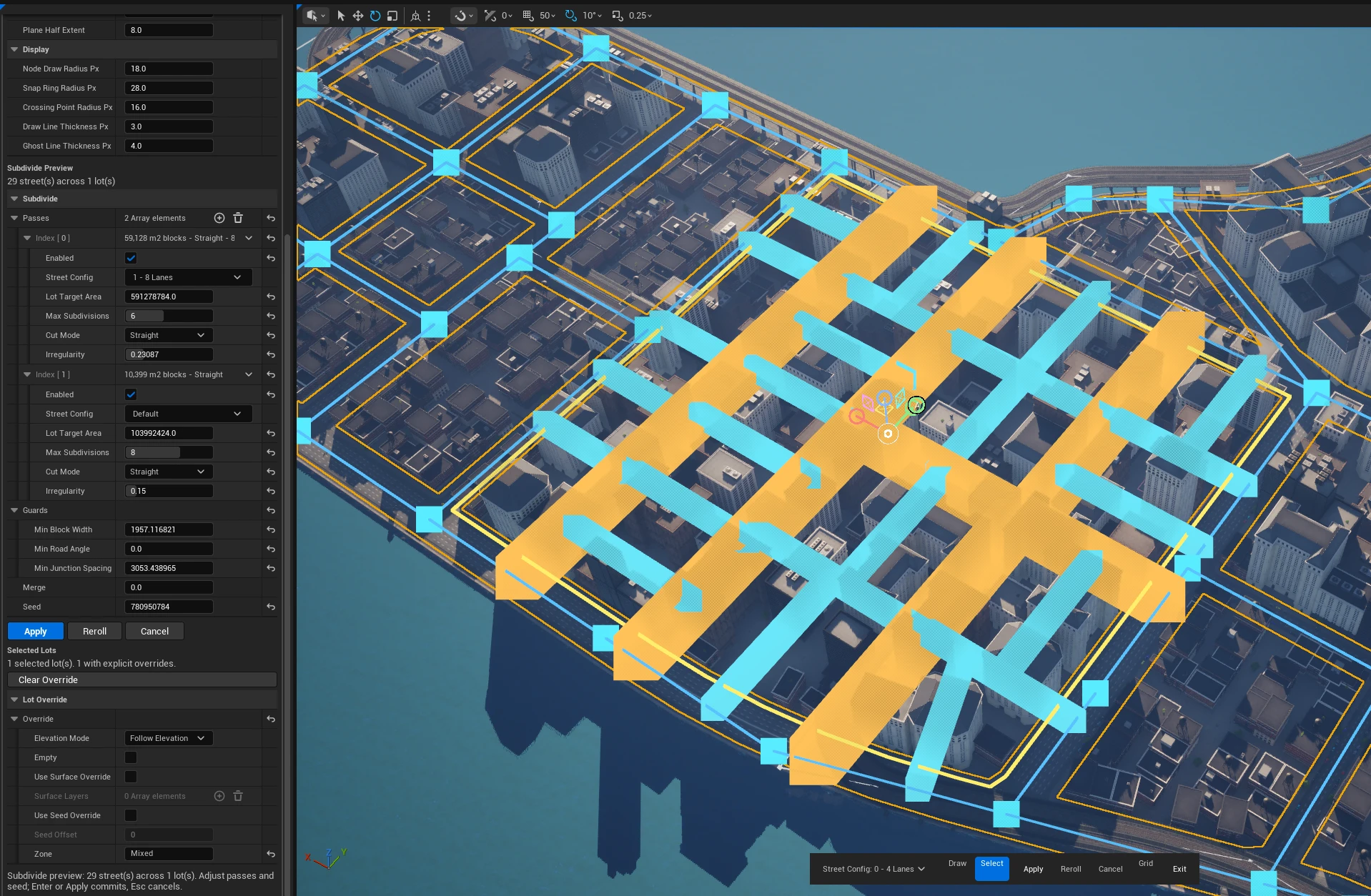
The Subdivide button sits in the viewport bar and appears only in Select sub-mode with at least one lot selected. Press it and the button is replaced by Apply, Reroll, and Cancel while a Subdivide Preview panel appears in the mode panel.
- Regenerate the network first, so its lots carry stable keys. If a lot cannot be read you are told to regenerate and reselect.
- Switch to Select and click the lot or lots to subdivide.
- Press Subdivide. Ghost streets appear immediately, one colour per pass.
- Adjust passes, guards, and seed. Every edit updates the preview at once. Reroll shuffles the layout.
- Press Apply, or Enter.
Passes
Each row in Passes is one cutting pass, run top to bottom, each working on the blocks the previous one left. A coarse pass followed by a finer one gives arterials first and side streets inside them.
| Control | What it does |
|---|---|
| Enabled | Skip this pass without losing its settings or disturbing the others. |
| Street Config | Which street config the pass's roads are built from, picked by name from the network's own configs. Default follows the network default. |
| Lot Target Area | The block size this pass aims for, in real square world units. |
| Max Subdivisions | Ceiling on how many times one block may be cut. |
| Cut Mode | Straight cuts square to each lot's longest edge, alternating with the perpendicular direction, for rectangular grid-like blocks that follow the lot's own orientation rather than the world axes. Angled cuts across the long axis with a random tilt, for organic irregular blocks. |
| Irregularity | How much the cut position and angle wander. At 0 a block is split exactly down the middle by area, deterministically. |
Adding a pass prefills it at half the previous pass's target area, so one click visibly changes the preview.
Guards
Guards are quality limits applied to every pass. A cut that fails one is rejected and another is tried; a block whose every attempt is rejected stays whole. Guards never consume randomness, so switching one on or off never reshuffles the rest of the layout.
- Min Block Width - the narrowest mean width a block may end up with.
-1is Auto, which scales itself from the smallest enabled pass's Target Area, so asking for smaller blocks does not require lowering this by hand.0turns it off. - Min Road Angle - the shallowest angle at which a new street may meet the road it ends on.
0turns it off. - Min Junction Spacing - how far apart new junctions must be.
-1derives it from the network's own merge radius.
If nothing subdivides, the status bar names the effective value that rejected everything - including what Auto resolved to - and points at the control to change.
Merge
Merge dissolves a fraction of the street sections once, after every pass has run, fusing the blocks on either side. That is what turns a plain grid into L, T, and U shaped blocks. It can never strand a street: no dissolve is allowed to leave a junction with only one street attached, so dead ends are impossible.
Applying
Apply is purely additive - it never wipes existing streets. New endpoints weld into the roads they meet, and the status line reports how many welded away. The whole thing is one undo step.
Afterwards the lot selection clears, because the subdivided faces are new lots with new keys. To cut again inside a resulting block, let the network regenerate and reselect.
Any left click in the viewport, any Delete, and switching sub-mode all cancel the preview silently - it behaves like a popover. Esc and right-click cancel it with a message. Nothing was written, so cancelling reverts nothing, but the settings you were tuning go with it. Apply before doing anything else.
Your passes, guards, merge, and seed are remembered between sessions, per user, from the last applied run. Cancelling saves nothing, and there is no named-preset mechanism for them.
The Gap, Cut Lines, and Gap Outlines features belong to the SA Subdivide Lots PCG node, which subdivides lot shapes in a graph. In Streets Mode a cut becomes a real road with a width from its street config, so there is no gap to set.
Streets Mode settings
| Category | Controls |
|---|---|
| Snapping | Grid enabled, Grid Step, Angle Snap Degrees, and Node Merge Radius (how close a dragged node must come to another before they fuse; 0 disables it). |
| Selection | Node/edge screen pick distances and drag-start distance. |
| Gizmo | Axis Space, world axis length, axis/plane pick distances, and plane half extent. |
| Display | Node radius, snap-ring radius, crossing radius, authored-line thickness, and ghost-line thickness. |