Preset Library and DataTables
The Preset Library is the central browser for Wall, Building, Curve, Custom Piece, and Streets-compatible preset rows. Open it from the Spline Architect menu or the Architect Mode panel.
It docks like any editor tab. The top half is the browser - category tabs, a DataTable filter, search, the action toolbar, and the presets themselves as a list or a thumbnail grid. The bottom half shows the selected preset's settings, so you can tweak a row without leaving the panel.
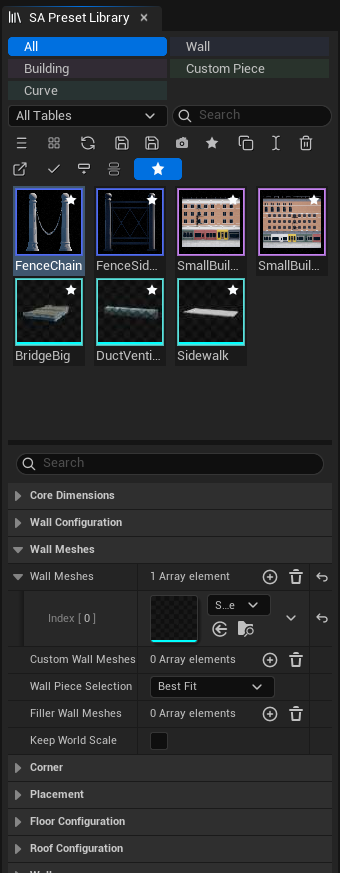
Library controls
| Control | What it does |
|---|---|
| Category tabs | Show one preset type at a time. Selection can auto-switch the active category when enabled in Project Settings. |
| DataTable filter | Enable all, disable all, or choose which source tables contribute rows. |
| Search | Matches display name, row name, description, type, and DataTable path. |
| Favorites only / Favorite | Marks rows for quick filtering without changing their DataTable content. |
| View | Columns, Columns + Thumbnails, Small Icons, Medium Icons, or Large Icons. |
| Reload | Rescans preset DataTables and metadata. |
| Save selected actor as new preset | Creates a row from the selected compatible actor. |
| Update Thumbnail | Renders and stores the selected preset's managed thumbnail. |
| Delete | Removes selected rows after confirmation; multi-selection can span DataTables. |
| Open Source DataTable | Opens the selected row's table in Unreal's DataTable editor. |
Acting on several presets at once
The right-click menu acts on the whole selection, and its entries name the count. Add to Favorites, Duplicate, and Delete all work across a multi-selection, spanning DataTables, and Delete asks once for the lot. Favoriting is a single decision for the group: if any selected preset is not yet a favorite, the action favorites them all; only when they are all favorites already does it clear them.
Right-clicking a preset that is outside the current selection acts on that preset alone, the same way the Content Browser behaves.
The remaining actions - Start Drawing, Apply to Selected, Create from Preset, Spawn as Attached, Insert into Stack, Overwrite, Update Thumbnail, Rename, and Open Source DataTable - need a single target and are disabled on a multi-selection.
Selecting a row exposes editable metadata: Display Name, Description, Favorite, and optional custom Thumbnail. If no custom texture is supplied, supported preset types can render a managed thumbnail or fall back to a representative mesh.
Drag and drop
- Drag a preset into the level viewport to create its actor. Dragging with several presets selected places all of them in one step and one undo: free-standing actors are arranged on a grid centred on the drop point and spaced by their measured bounds, so nothing overlaps. Custom pieces that find an owner are positioned by that owner's spline instead.
- Drag a preset onto the Architect Mode panel to make it the active drawing preset.
- Use recent-preset chips for the last Wall, Building, and Curve rows without reopening the full library.
The active category tab and the Favorites only toggle are both remembered between sessions. A library that looks empty is usually filtered to a type you were last working in, or to favorites - check those two before the DataTable filter.
Create the correct DataTable
In the Content Browser choose Add → Miscellaneous → Data Table, then select the matching row structure:
| Preset | Row structure |
|---|---|
| Wall | WallPreset |
| Building | BuildingPreset |
| Curve | CurvePreset |
| Custom Piece | SplineArchitectCustomPiecePresetRow |
Use separate tables for coherent asset kits or teams, not for every individual row. The library key is the preset type + DataTable asset + row name, so identical row names in different tables remain distinct.
Classification tags
Building and Wall rows expose Preset Tags, an array of exact Name values used to classify generated output and query Building pools in SA PCG. Examples:
- Building:
Small,Residential,Commercial,Tower; - Wall:
BaseFloor,Facade,Trim.
Tags belong to the preset row or inline preset and are included when that preset is saved. They are separate from the Preset Library's Display Name, Description, Favorite, and Thumbnail metadata. Curve presets do not expose Preset Tags.
Use Building tags—not tags from referenced Wall rows—when filtering SA Spawn Building → Random From DataTable candidates. Wall tags remain precise to the components generated by that Wall layer.
Saving and updating
Actor Save Preset and library Save selected actor as new preset both create rows. Choose whether the actor should switch to the saved row after save; this turns an inline setup into an instance of shared data. Editing a row in the DataTable affects every actor that references it once they regenerate, unless an actor masks that value with Parameter Overrides.
Commit the DataTable, Preset Library Data Asset, and generated managed thumbnail assets together when sharing presets through source control.